
[2/2] Become your own Service Provider
/ 7 min read
Updated:Table of Contents
We finally come to the software section, where we discuss the options we have for hosting applications and the services that can help us do that. ‘Turnkey systems’, which we will discuss soon, while being the most beginner friendly, can be skipped with some prerequisite knowledge of docker.
Linux, surprise to noone, is king, but if youre reading this far, you should probably learn how to use it anyways.
Why not windows
While most people who get into self hosting are already avid linux users, it should not be a barrier to entry, and one could try dueling it out with windows. But, linux is still the best option when it comes to self hosting, not only for its ease of use, but also for its security and flexibility.
Windows, is already a paid setup, with the server edition costing more than the server. And the hardware requirements and setups more complicated than someone who only wants to keep their data to themselves, would want to attempt.
Turnkey Setups
While there are the more popular setups that use proxmox for all their hosting needs, and proxmox is infact something that does handle absolutely everything one would ever want to do. There are much easier setups, called Turnkey OSes.
They allow you to manage your home server “like an iPhone” in the sense that rather than go through a complicated rigamarole of configuring services, you can just install them similar to apps on iOS. You just click and they install.
Except, in reality, its never actually that simple. You either have a VERY restricted set of highly managed applications that you effectively have little ownership of, or you have to deal with manually configuring them.
Its never ‘just works’ (sorry Todd Howard)
Some popular options are:
Yunohost
One of the more popular turnkey setups, it has a truly large variety of applications that can be installed with a few clicks. It not only provides a free SSL and DNS (ie your own website to access your public facing services), but also has its own package manager, and security features that make it a great choice for beginners.
It installs as its own OS, and provides a web interface to manage your server after the initial setup. Hence requires you have an internet connection during the initial setup.
Why CasaOS
Personal use of linux as a daily driver did mean I rather wanted a setup where I could still use the system as I would on my desktop for maintenance.
CasaOS installs as an application with a single command, and provides a web interface that can be used to install services as docker containers. The data from said containers is stored in a clean DATA directory in the root directory, seperated by AppData for the containers and other folders like Gallery and Media.
With a large variety of preset applications and an option to install your own with docker compose, it was one of the more ‘easy’ options, and is also one of the better ‘starter’ setups if:
- one wishes to get into more complicated setups later.
- Already knows how docker works.
- Wants to have more control over the system outside the turnkey.
Current Setup
I have since done away with CasaOS, and have moved to a more traditional setup with Docker and Tailscale.
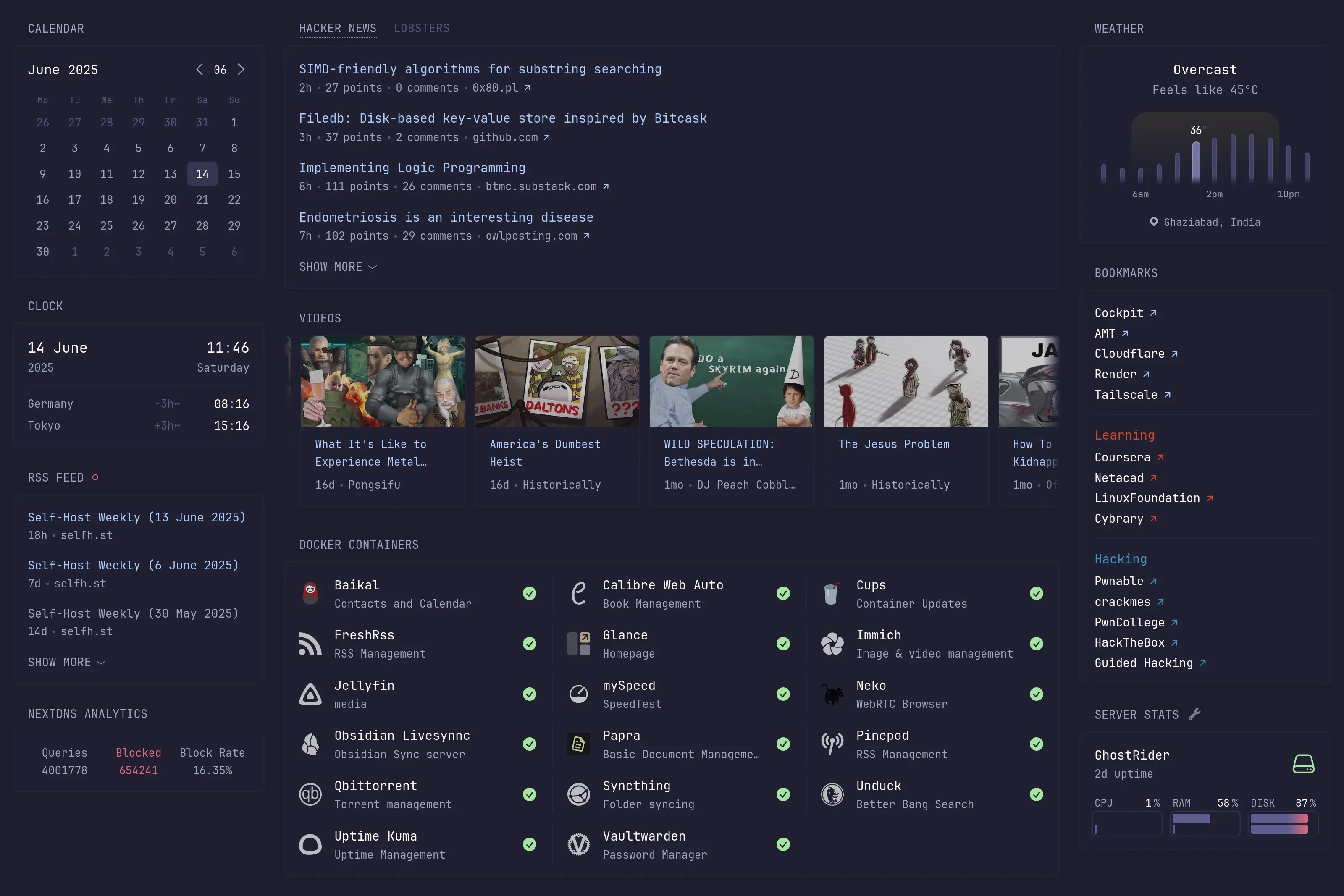
With docker being managed using Cockpit and a frontend made using Glance
The migration process from CasaOS was a breeze, thanks to its docker oriented setup and easy exports of compose files.
Docker and Tailscale
Getting used to the two is essential when it comes to self hosting. Docker provides a way to run applications in isolated environments, while Tailscale allows for secure communication between devices over the internet, without worrying about IP addresses or port forwarding.
Tailscale is also able to provide a public facing access point using funnels.
There is an option of setting it up within docker compose to create multiple front facing sites, but i have had no luck with that setup.
Self Hosted Applications
What one hosts depends on their own usecase and what appeals to them.
The main things to consider are the services you plan on replacing. For services provided by, say Google, options like nextcloud and owncloud would be a drop in replacement, with more complicated setups using NFS and baikal to isolate different services.
Services like Netflix and Prime Video have Stremio and Jellyfin as alternatives. With Music being more complicated thanks to its variety and changing tastes, but options like beets and jellyfin’s music section may be used to stream curated offline playlists with ease.
Uptime, the amount of time a service is available to its users, is something that must be heavily considered when choosing the applications, and Cockpit provides one of the less complicated setups to monitor resource use. Though most ‘power users’ prefer Grafana.
There are several sites and lists that showcase popular and new services in the self hosting scene, such as:
Below is some of what I host, and has easily fit everything i need in under 250Gb, with resource highs barely over 80% CPU at peak usage.
My Self Hosts
Media
The most important service for this purpose is a torrent manager, such as qbitorrent. Which allows easy management of media from less than legitimate sources and torrents.
- Jellyfin: The most hosted service among the self hosting community, not only allows you to host your movies and TV, but also music. Apps exist to stream both, with Symfonium being the best looking option for streaming music at good quality. It is a good idea to enable hardware acceleration for video playback.
- Immich: A self hosted alternative to google photos. With web interface and mobile apps, it is a great way to manage your precious memories, and is able to auto backup to the “cloud” from your phone seamlessly.
- Pinepod: A self hosted podcast manager, allowing you to host your own podcasts and stream them via a web interface.
- Calibre Web Auto: A modified version of the popular Calibre Web, it adds extra features like ‘auto book intake’ and a snazzier UI.
- FreshRSS: A self hosted RSS reader, allowing you to manage your feeds and read them from a web interface. It is also able to connect to other readers, so that you never loose your feeds.
Data Management
- Baikal: A no nonsense calendar and contact manager, and a better alternative to google’s services.
- Vaultwarden: A self hosted password manager built on bitwarden, with added features that are otherwise paid.
- Papra: A ‘less fussy’ alternative to the more famous paperless-ngx, it provides a simple way to manage and tag documents. Although Paperless may be the better option depending on the amount of documents.
- Obsidian LiveSync: A community-developed synchronisation plug-in available for Obsidian, with features like live edits and real-time collaboration.
- Syncthing: A self hosted file synchronisation tool, allows easy secondary backups of the backups created by applications on mobile and desktop.
File Access
Options within linux, and other applications like copyparty, allow access to remote files via FTP, NFS, and WebDAV.
This allows for easy access to files from anywhere, and is a great way to share files between systems and aid local collaboration (never allow public access to private data).
Backups
Backing up your Server could be important based on what data you store on it.
Common options include:
- RAID: A redundant array of independent disks, providing data redundancy and fault tolerance. This may not be an option depending on hardware.
- Backblaze: A popular cloud backup service that offers unlimited storage and easy access to your data.
- rsync: An empty UNIX filesystem to access with any SSH tool. Built on ZFS for data security and fault tolerance. With per GB pricing